Blog Archive

Showing posts with label Andriod. Show all posts

15 March 2016

Method to Restore Text Message On Andriod Without Computer- New 2016

Its Some times very difficult to Restore some personal message which is deleted.
But on andriod these thing is possible.
Absolutely Andriod is Dynamic & Smart Os in the world.

Here we are sharing  how restore deleted text message without Computer or mac.


As stated earlier, to recover deleted text messages android is easy unless you are aware of it. The method is very simple and it is based on the awesome
android recovery trick. This would help in getting back the text which was deleted easily.

Step:- 

👉Download this application in your android mobile.


👉Open it in your mobile and simply click on backup and select the type of backup. Click on All Conversation and at the bottom select Local Backup And Upload.


👉Now backup process will be started and your messages will get backup.


👉Now whenever you lost or accidentally deleted messages then simply restore it.


To conclude, the above given is the procedure to recover deleted text messages android . With this method, one can easily be able to get back the deleted text messages and other kind of data which you have thought to be lost from the android device . Go ahead and share this best method to retrieve deleted text messages android with your friends on social media. Bookmark this page to get more updates on how to recover deleted text messages on android.

How To Make Phone Ring On Silent

Hi friends, Welcome Back Here.......

Today We are discuss on How to make Phone Ring on Silent Mode.


Its Many Time Happen, We forget our phone in home on silent mode, and its difficult to find out. So, today my Article about how to prevent from it.

Make my phone ring to make a ring on silent phone. How to make a phone ring on silent via make my phone ring is the most trending this days. People mostly search for how to make a phone ring on silent & make my phone ring when they lost their phone in silent mode. It is a critical problem when you lost your phone in silent mode.

Step:-

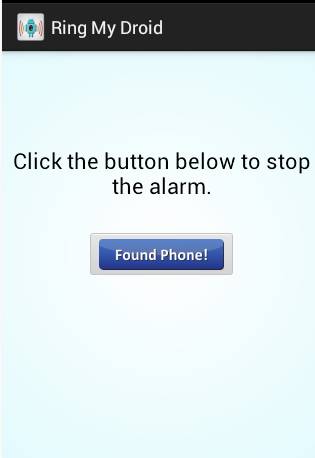
👉First of all you are required to download this make my phone ring android app to make a phone ring on silent: Ring My Droid

👉When you get done with the process of installation, open the application

👉Now you will see the display with
Set your key pharse . Here you will be required to insert the secret message which will make your phone ring when it get received on your device


👉Just simply click the Set button after entering the secret message. Now when your phone get lost on silent mode, you just need to send this secret message to the phone via any other mobile. The phone will start ringing.

👉And when you find the location of your phone via this make my phone ring then just click on Found Phone! button. It will stop ringing.

👉That’s it. You are done with the process of how to make a phone ring on silent . This will help you to ring your phone even in the silent mode.


✔Done.

We hope you Understand the process of HOW TO FIND PHONE MISPLACED ON SILENT MODE.
Its process is so easy....
Thanks.....

14 March 2016

How To Run Andriod Apps On PC

Today We are Discuss on How To Run Andriod Apps On PC.

In this article, I’ll explain How to install and run Android apps on
PC . In our day to day life, we are using android apps for completing our tasks and android games for entertainment. We can run android apps and games on our PC using
BlueStacks.

What is BlueStacks?
BlueStacks is a software company which produces Bluestack products like BlueStacks app player and
BlueStacks cloud connect . These products are designed to enable
Android applications to run on windows, Mac computers, and windows tablets.
With the help of BlueStacks App player, you can run your favourite android apps/games on your PC. Linux users might not be able to run android apps on their PC because BlueStacks is not available for Linux users. We hope that they will launch Linux version soon.


Just follow these simple steps in order to run android apps on your PC.


👉Go to BlueStacks site and download BlueStacks software based upon your OS.


👉After the download is finished, you need to open the download file and go through the setup and done the installing process.


Note: This application requires at least 2GB of physical memory(RAM) . Once you have downloaded & installed BlueStacks then please restart your computer if you have RAM less than 4GB. But if you have RAM greater than 4GB then you will not face any error.


👉After that you will see BlueStacks application window and Apps and icons.


👉Now search for the application that you want to install on your PC.


👉Before installing the selected apps, you have to sign up for a Google account or use your existing Google account. So BlueStacks can allowed to access Google Play and get apps from the store. You’ll have to link your Google account to BlueStacks so that it will download apps to your device.

👉Now you can install all android apps from Google Play Store within BlueStacks. Just click on Install button and BlueStacks will download apps to your computer.


👉Now you can see your app at the top of the window. If you don’t see it, Click All apps button at the right side of the window. You can install as many apps you want. All the applications will run within BlueStacks.


We hope you understand.....
Thanks...

How To Hack AppLock in Andriod Device Without Knowing Password

Applock is the one of the best Security app in andriod Universe.
So Today We are discuss on How to Hack Applock in Andriod Device.

AppLock helps us to lock photos, messages, contacts, apps etc., and protects our privacy. However, AppLock will not give 100% security to the apps. In this article, I’ll explain How to hack AppLock android app. No need to uninstall the app or no root is required. well! let us see how to bypass AppLock android app without knowing the password.

Note:-This trick will not work if the
settings are locked by the admin.


Step:-


👉Take the target phone in which you want to hack AppLock.

👉Now go to settings and then tap on Apps or Applications.

👉You will see AppLock app under
downloaded section and tap on it.


👉After that tap on Force stop option.


With this AppLock application is currently in the idle state. You can open locked apps without entering the password.

I hope you’ve have understood How to bypass AppLock application in android devices. If you have any doubts, comment below in the comment section and feel free to share this trick with others.
Thanks.......

13 March 2016

Secret Code Of Andriod OS

Hi Friends,
Today we are back with Andriod Secrete Code.


An Android operating system is most widely used in the world. Android developers also creates many backdoor through which you can enter into the system and you can change settings. It is not meant to be used these backdoor for malicious intent because developers blocked some modes and these backdoor are the way or allow the users to enter into the system and let you become familiar to the system. In smartphone these backdoor are called
“secret codes” .

●Andriod Secret Code.


✔ *#*#7780#*#*
👉Factory restore setting
👉Clear all application and data.
👉Remove Google account setting.
👉Remove System, application data and settings.


✔ *#*#197328640#*#*
👉Enabling test mode for service activity.
👉Used to enter into Service mode.
👉You can run and change various tests and settings in the service mode.


✔ *2767*3855#
👉Reinstall the phones firmware.
👉Used for factory format.
👉Remove all files and settings including the internal storage.
👉Reinstall the firmware.


✔ *#*#4636#*#*

👉Phone basic information.
👉Phone usage detail.
👉Battery information.


✔ *#*#34971539#*#*
👉Information about mobile camera.
👉Get camera information.
🔴Note:- Please avoid update camera firmware option


✔ *#*#7594#*#*
👉Changing the power button behavior.
👉Enables the direct power off without asking for selecting any option (silent mode, Aeroplane and power off).


✔ *#*#273283*255*663282*#*#*
👉Create backup to all your media files.
👉Opens file copy screen where you can backup your media files like (images, videos and audios).


✔ *#*#8255#*#*
👉For Google Talk service monitoring.
👉Used to launch G Talk Service Monitor.


✔ *2767*4387264636* 
👉Used to display product code.


✔ *#0228# 
👉Used to know Battery Status.


✔ *#12580*369* 
👉Software and Hardware Info.


✔ *#32489# 
👉Let you know Ciphering Info.


✔ *#273283*255*3282*# 
👉Data create menu.


✔ *#3282*727336*# 
👉Data usage status.


✔ *#8736364# 
👉OTA update menu.


✔ *#*#526#*#*
✔ *#*#528#*#*
✔ *#*#232339#*#*
👉WLAN Test.


✔ *#*#232338#*#* 
👉Displays/Shows WiFi MAC address.


✔*#*#1472365#*#* 
👉For quick GPS test.


✔*#*#1575#*#* 
👉Different type GPS test.


✔*#*#232331#*#* 
👉Bluetooth test.


✔*#*#232337#*# 
👉Displays Bluetooth device address.


✔*#*#1111#*#* 
👉Let you know about FTA SW Version.


✔*#*#2222#*#* 
👉FTA Hardware Version.


✔*#*#4986*2650468#*#*
👉Firmware Info PDA, Phone, H/W, RFCallDate.


✔*#*#1234#*#* 
👉PDA and Phone firmware info.


✔*#2263# 
👉RF band selection


✔*#9090# 
👉Diagnostic configuration.


✔*#7284# 
👉USB 12C mode control.


✔*#872564# 
👉USB logging control.


✔*#745# 
👉RIL dump menu.


✔*#746# 
👉Debug dump menu.


✔*#9900# 
👉System dump mode.


✔*#*#44336#*#*
👉Shows Build time changelist number.
👉PDA, Phone, CSC, Build Time, ChangeList number.


✔*#03# 
👉NAND flash serial number.


✔*#3214789# 
👉GCF mode status.


✔*#*#0283#*#* 
👉 Packet Loop-back test.

✔*#*#0*#*#* 
👉LCD test.


✔*#*#0673#*#*
✔ *#*#0289#*#* 
👉Audio/Melody test.


✔*#*#0842#*#* 
👉Vibration test and Back Light test Device test.


✔*#*#2663#*#* 
👉Displays Touch screen version.


✔*#*#2664#*#* 
👉Touch-Screen test.


✔*#*#0588#*#* 
👉Proximity sensor test.


✔*#*#3264#*#* 
👉RAM version.


✔*#0782# 
👉Real time clock test.


✔*#0589# 
👉Light sensor test.


✔*#7353# 
👉Quick test menu.

✔*#*#7262626#*#* 
👉Field test.


✔*#06# 
👉IMEI number.


✔*#*#8351#*#* 
👉Enables voice dialing logging mode.


✔*#*#8350#*#* 
👉Disables voice dialing logging mode.


✔**05***# 
👉Execute from Emergency dial screeen to unlock PUK code.


✔*#301279# 
👉HSDPA HSUPA control menu.


✔*#7465625# 
👉View phone lock status.


✔*#0*# 
👉Galaxy S3 service menu.


✔##7764726
👉Motorola DROID hidden service menu.
👉The default SPC password is six zeroes(000000).


✔1809#*990#
👉LG Optimus 2x hidden service menu.
👉When prompted for a code enter six zeroes(000000).


✔3845#*920#
👉Lg Optimus 3D hidden service menu.
👉When prompted for a code enter six zeroes(000000).


All the above given android secret codes are tested and working fine. But some codes may not works few devices. You can just try find which work or which not. Be alert while using them we are not responsible for any data loss or other problem. If you had any problem while trying must leave your comment.

Thanks..........

09 March 2016

How To Track a Lost Phone.

Today We are back with a Best trick for everyone.
Track a Lost Phone.

In the case of stolen or lost your phone, this trick help you to find your phone by tracking.


For Andriod Phone:-

Track a lost android phone, you can follow the steps mentioned below.

👉Download Android Device Manager from Google play store and install it on another android device. This app lets you track your stolen android phone and also lets to remotely lock or erase all the data on it.


👉From “Android Device Manager” log into your Google account using the same ID associated with your lost phone. After successful login this app will attempt to locate your device and show its last known location on the map.

👉In addition, you will also be able to perform several actions on your lost phone such as give a Ring , Lock the device or
Erase all the data stored on it.

For Windows Phone:-

Track down a lost Windows phone, you can try the below mentioned steps:-

👉Go to Windows Phone Website and locate the option Find My Phone on the top-right corner of the page.


👉This will ask you to sign-in using your Windows account associated with your lost phone. If your phone gets traced you will see a map showing its exact location. You will also find options to
Lock , Ring and Erase its data in case if your phone is found to be completely lost.

For Apple iPhone

👉Login to the iCloud Website using an Apple ID associated with your lost phone. Since location tracking is turned on by default on all iPhone devices, iCould lets you track it from your web browser or your iPad and shows its location on the map.


👉If your phone is found nearby to your location you have an option to Play Sound on it so that your iPhone will emit a sound, helping you track it down.

👉If this does not help, you can choose the option Lost Mode which will remotely lock your phone down and display a phone number that can be reached at.

👉If none of the above options work, you can finally decide to go with the option Erase iPhone which will completely wipe out all the data stored on it. This way you can prevent your private information from falling into the wrong hands.

We hope it work for you...
THANKS .......


23 February 2016

Best Andriod Antivirus 2016

Best Andriod Antivirus 2016

New and best antivirus for android 2016. Best antivirus for android is most widely search term in the internet. People do search for the best android antivirus 2016. So here on the special demand of p-techweb visitors, we are sharing all new top best antivirus for android 2016.
Recently, there has been an increase in the requirement of android phones . With each passing days, various kinds of tough and hardcore virus are making their way into our PC and system. Not only they are becoming hard to dispose off but end up causing havoc and deleting all our important files. Also check out our recent post on best android apps 2016.

Why You need Andriod Antivirus?

Just recently, a dangerous virus called
Dendroid started attacking the devices running on Android OS. So, the question arising on most of our mind is how can android phones be protected? Since there are various best android antivirus available on Google play store, but how many of them are worth the dollar you pay?
There are various best antivirus android tools available online, but you do need to know their features and how they work before selecting one. It is important that you choose the best android antivirus 2016 as you won’t get any second chance as it would become too late before the damage is done.

Some of the best Andriod Antivirus tools Found Online are:-


1. AVG Antivirus - (Best Andriod antivirus 2016):- 


There are various best antivirus android tools available online, but you do need to know their features and how they work before selecting one. It is important that you choose the best android antivirus 2016 as you won’t get any second chance as it would become too late before the damage is done.

Features of AVG Antivirus:- 

•The extensive features of this antivirus consist of scanning apps, media and files, settings all in real time.

•You can find and locate stolen phone using the Google Maps with this best antivirus for android phones

•Wiping and locking the device to protect the privacy can be easily done using the AVG Antivirus tool.

•You can kill the task which slows down
your device and monitoring the battery, data package and storage usage is possible with this tool.


Free, top-rated, real-time antivirus and anti-theft security and protection for Android devices.

AVG AntiVirus FREE for Android™ phones and tablets protects you from harmful viruses, malware, spyware and text messages and helps keep your personal data safe.
Download for Free Now!

Over 100,000,000 people already installed AVG’s antivirus mobile security apps. Join them now and:
✔ Scan apps, settings, files & media in real time
✔ Enable finding/locating your lost / stolen phone via Google Maps
✔ Lock / wipe your device to protect your privacy
✔ Kill tasks that slow down your device
✔ Browse the web safely & securely
✔ Monitor battery, storage and data package usage

With AVG AntiVirus FREE for Android phones and tablets you’ll receive effective, easy-to-use virus and malware protection, as well as a real-time app scanner, phone locator, task killer, app lock and local device wipe to help shield you from threats to your privacy and online identity. Real-time security scanner protection keeps you protected from downloaded apps and games.

AVG AntiVirus FREE for Android phones and tablets also:
✔ Defends against malicious apps, viruses, malware and spyware
✔ Identifies unsecure device settings and advises how to fix them
✔ Helps ensure contacts, bookmarks and text messages are safe
✔ Checks media files for malicious software and security threats
✔ Guards you from phishing attacks


Protection:-
✔ Scan apps and files and remove malicious content
✔ Search, shop and use social networks with peace of mind, knowing your identity and personal data are protected from phishing and malware
✔ Scan websites for harmful threats. If a suspicious URL is detected, you will be redirected to a “Safe Page”
* Safe Web Surfing is applicable only to Android's default browser and Chrome

Performance:-
✔ Kill tasks and processes that can slow down or freeze up your phone
✔ Monitor battery consumption and enable power saving
✔ Monitor traffic - keep track of your mobile data plan usage
✔ Optimize internal and SD card storage space

Anti-theft and real phone location
Use AVG’s remote management console or text messages (SMS) to:
✔ Locate your lost or stolen phone and get help finding it via Google Maps™
✔ Lock your phone and set a lock screen message to help the locator find you
✔ Make your phone ring (shout) even if it is on silent mode
✔ Wipe your phone and SD card content
✔ Camera Trap [30 day trial]: discreetly emails you a photo of anyone who enters 3 wrong passwords when trying to unlock your phone
✔ Device Lock [30 day trial]: automatically locks your phone whenever someone replaces your SIM card

Privency:-
✔ Appslock [30 day trial]: lock sensitive apps to protect your privacy and safety or lock your device settings to secure its configuration
✔ App Backup [30 day trial]: backup apps from your device to your SD card so you can restore them whenever necessary
✔ Call and Message Blocker: protect yourself against spammers, hackers and scammers. Get warned about suspicious text messages, filter and block unwanted calls and messages (SMS Blocker is currently unavailable for Android v4.4 devices)
✔ Wipe contacts, text messages, photos, browser history, calendar, format SD card and restore device to factory settings

AVG AntiVirus FREE for Android phones and tablets is available in 32 languages.
See below the Snapshot......

 Click Here- Download (AVG antivirus)

Now, Enjoy Best Antivirus For Youe Andriod Device.

22 February 2016

Root Andriod Phone Without PC

How to Root Andriod Phone Without PC.

Root android without pc & how to root android phone without pc is the most trending question on internet. We have shared the top 7 root without pc application to successfully root android without pc . Our visitors daily ask us, email us regarding how to root android phone without pc. So here on the special demand of P-teach visitors, we are sharing all new working methods to root android without pc.

Most of us have heard about the Android rooting smartphones. Even if the answer is negative or positive, it won’t matter, because by the time you finish reading this article, you would get well versed with android rooting and the methods to root android without pc . Developers employ various tricks from their sleeve to root without pc or computer. Here we are sharing all new working methods to root android without pc edition.

But before you get to know on how to root android phone without pc or computer, you have to know what android rooting is and how much effective it can be.


What is Andriod Rooting??????

Andriod is an OS (i.e. open source OS) where you won’t be having full or complete root access to perform various functions on your smartphone.
Rooting  is a procedure where one can cross over the limitations and get full access to the OS. Now this rooting would help one to get access to the root of the OS and even provide the basic ability to create global changes. There are various methods available to root your android devices easily. But here we have share some of the best new working methods to root android without pc. Our tricks to root without pc is absolutely working for most of the device. We have also shared some of the best root without pc apk in this article. Do read the all the instruction carefully before rooting your android device without pc or computer.

Aadvantage of Andriod Rooting.

• One of the biggest advantages of
root android without pc is having free and abundant internal memory. Yes! Individuals often struggle with low internal memory, but by rooting their phone, they can transfer any apps from the internal memory to the SD card.


•In addition, you would be able to use the latest and current Android operating system. Simply by rooting android without pc, it would provide you with the option to set up any future and current operating system by just installing the custom and tailor-made ROM.

•The most powerful and attractive benefit to root without pc is the ability to customize ROM. There are thousands of custom and qualitative ROM which can help in doing various things right from speeding up the processing ability of your smartphone to modifying the entire options, looks and feel of the phone. Isn’t that great?

•Another interesting advantage of how to root android phone without pc is that you can run various special apps. You could easily install variety of apps which are compatible along with the rooted smartphones. For example, you could easily uninstall various apps after you have root accessed by simply using the uninstall option.

Disadvantage Of Andriod Rooting.

•One of the biggest disadvantages of to root android without pc is that you could end up voiding the warranty of the phone. That is why some people avoid it. To root means getting your phone bricked. This is the most common disadvantage of using the rooting procedure.

•No matter how much expert or best you are in using the best tutorial in rooting, there is no doubt that it is simply just a daunting task. So, in case if you pass out any step or flash the corrupt zip file, then you could end up with a broken or bricked smartphone.

Method 1: Employing Framaroot To Root Android Without PC.

A framaroot is a normal one click app which can root all kinds of android devices or phones and that too without the use of computers . This particular app was basically developed by Alephzain who was from the XDA forums. With just a single click of this particular app, one could install SU binary and Superuser easily on the smartphone and you will get your answer of how to root android without pc .
Framaroot a root without pc apk currently supports smartphones who have Android version 2.0+. This is the fastest and easiest method to root without PC. All you have to do is just simply download the Framaroot app and then copy the downloaded file into the smartphone or device through the SD.

STEP 1- First step would be to download the particular Framaroot app to your PC or smartphone. (Download Farmaroot link is given below)

Click Here- Downlaod 
 
STEP 2- Now in case you have downloaded the file to your computer, then you need to copy the APK file into the smartphone memory. In case if you have downloaded into the phone, make sure to move it to a specific folder.

STEP 3- Once that is done, then you need to install the Framaroot from the given apk file.

STEP 4-Here you need to select the ‘Install Superuser’ option which is present in the Framaroot.


STEP 5- Then you can select any of the given exploits which would appear in the applications.

STEP 6- Now you may have to wait and in case you see this message “Success, SU binary and Superuser installed”, it means that your rooted app is successfully installed and you would have to reboot the system in order to use it. Finally you are done with the process of root android without pc methods.


But if you get a failed message, then there is another exploit method to root android without computer.


 Method 2:- Using Universal Androot to Root Without PC. 

There are various ways for how to root android without computer but the regular methods can be quite complicated. Androot is simple app that could easily help in rooting the Android phone with the simple downloading and installing without the use of the PC. It is so far an easy and working methods to root android without pc.

STEP 1:- First go to the Settings option of your Android Device and selects the Application option. Here you need to click the check box for Unknown source and save it.

STEP 2:- Now download and install the app called UNIVERSAL ANDROOT. (downlod from below given link) 

Click Here - Download 

STEP 3- Once it is success, then you need to launch the app into your cell phone and click on the Root option. You must make sure that you select the right version of the Android cell phone.


STEP 4:- Your Android phone is now successfully Rooted. Share this best root without pc apk with your friends to answer them on how to root android without pc.

Method 3:- iroot

It is the one of the easiest method to root android without pc or computer. This software is developed by Mgyun team who had also realesded vRoot before. This iRoot application support any android mobile or smartphone. It supports Android 2.2 to 4.4 running devices to root it without the use of computer.


          Click Here- Download- iroot 1

          Click Here- Download- iroot 2

iRoot supports more than 150000 models with various brand names. iRoot uses the most advanced rooting technique which give 95% success rate. You can just root or unroot your android device in just one single click.


Method 4:- Z4 Root To Root Andriod Without PC. 

Z4 ROOT is one of the best and the oldest app to root android mobile without the use computer or pc. It is very easy to use this application. This application is developed by one the member of XDA. This Z4 Root application can root almost every android mobile chipset. If you have the android mobile from the company xolo, lava, micromax, spice then you must try this root android without pc application.

Click Here- Download Z4 Root


Method 5:- Easy Rooting Toolkit App.

This is one of the best and new working app to root android phone without pc. This easy rooting toolkit will root your mobile and even install the busybox and su files in your mobile. You must have try this app to easily root your android device.

Click Here- Download- Easy Rooting Toolkit App

Method 6:- Towel root.

This application is developed by Geohot to root without pc easily. It successfully rooted Verizon Galaxy S5, AT&T GS5, Nexus 5, GS4, Note 3 and lots of Latest Android mobile devices.

It is very easy and free to download from our website.

If you have any doubts in using this towel root application to root android mobile then comment here. We will try to solve it as soon as possible.

Note:- if the given link of apps & software in this post are not working.... then try to search and download yourself.

Warning:- P-teach is not responsible for mistake happened in while rooting 


21 February 2016

How Recover Delete File in Andriod

How To Recover Deleted File in Andriod .

Android data recovery app is the most trending search terms in google. People often finds the way for how to recover deleted files on android without computer . Here we are sharing the best android data recovery app include yodot android data recovery software to give the solution for how to recover deleted files android. As we all know it is very hard to recover deleted files on android. We are here explaining the best possible methods for how to recover deleted files android.
You have accidentally deleted your important files on Android Smartphone? Now, not to worry any more, we have the solution for how to recover deleted files on android . Now you can easily get back your important data, contact details, important messages, notes, audio files, videos, graphics, wallpapers etc. that are lost accidentally or due to some error i.e.
recover deleted files android .
We have the best android data recovery app & software which can help you to easily recover deleted files on android device. Now you don’t need to worry about losing your important data and information from your android smartphone as you can easily get back everything (recover deleted files android ) by installing this selected best android data recovery app & software for android. Check out below the best possible ways for how to recover deleted files android.


Below are the best methods to recover deleted files on android. We have explained everything in details that how to recover deleted files android via this best android data recovery app 2016.

Method-1:- Recovery Andriod  (Best Data Recovery Andriod App 2016) 

Recovery Andriod is one of the best company helps in recover deleted files on android & provides various android data recovery, rooting, backup and video converting applications for Android devices. Android data recovery app called Data Recovery Machine for Android developed by Recovery-Android is one of the most trusted and
reliable app for recovering deleted files from Android smartphone and tablets . Main recovering areas are videos, messages, images, contacts and other files.

Follow the steps to know how to recover deleted files on android without computer by Recovery-Android:

STEP 1: First of all you are required to
download android data recovery software provided by Recovery-Android on your PC. After downloading the software file, you can easily install it like any other PC Software (recover deleted files android )

STEP 2: Start USB debugging mode in your Android device. Go to setting – application and click on Development. Now make sure that USB debugging mode is enables. See the below snapshot to get more idea about this step.

STEP 3:- Connect your android device with your PC with USB cable. Now, open android data recovery app which you have installed previously in your PC.

STEP 4:- Do wait for software to recognize your android device in the app. After detecting, click on green start button to start scanning the device. Now look at your android device, if it shows any pop ups for permission, click on ALLOW. See the below snapshot to get more idea about this step.


STEP 5:- Scanning process will take a couple of minute to scan your whole device, it’s depends on the storage of your android device. Once this android data recovery app has completed its scanning process, you will see several files on your screen with red marked. These are the files which were deleted from your Android device. Now select those files which you would like to restore from device by marking the checkbox next to it and then click on RECOVER button.

That’s it! Recovery process will take some times, it’s depends upon the size of files. Now check your mobile, you have successfully recovered deleted files from android device . This is one of the best method for how to recover deleted files android. Follow all the steps carefully to recover deleted files on android.


Method-2:- Potatoshare (One of the Best Recovery Application)

Potatoshare is one of the most trusted and reliable company provides professional software for Windows, iOS and apps from Android smartphone. They have been providing
android data recovery app since 2006. Potatoshare’s data recovery software easily recovers deleted files on android device. It is one of the best solution for how to recover deleted files android.

STEP 1- First of all download android data recovery software by Potatoshare and install it in your PC.

STEP 2- Enable USB debugging mode in your android device from your Android setting app.

STEP 3- Connect your android device with your PC via cable.

STEP 4- Now you can see two options in software:
1. Scan contacts, call history and messages

2. Scan photos, videos or other files
Now, if you want to recover contact, call history and messages – click on first option. And if you want to recover photos, videos or other files – click on second option. If you wish to recover all deleted files from android then click on both the options. Now click on START button. See below snapshot to get more clear idea about it.


STEP 5- After clicking on start button, the software’s scanning process will begin. When scanning process gets done, you will see the deleted files with previews under different types of tabs. Select the files which you would like to restore on your Android device. Now click on Recover button, it will take couple of minutes to recover deleted file on your android device. When the recovery process is done, you can now able to see deleted files on your Android device.


The above given method to recover deleted files on android is one of the best solution for how to recover deleted files android. You just need to follow all the steps carefully of this
best android data recovery app 2016.

If you like this post of how to recover deleted files android, then you can share it with your friends on social media. To share, use below given social media sharing options. Bookmark this page to get latest updates on android data recovery app to recover deleted files on android.
Thanks.....
Visit Again......
Regard:- P-teach ( www.pteach.com)

How To Control One Smartphone From Another. Simple Method.

How To Control One Smartphone from Another.

Description:-  
Best ways on how to control one mobile from another mobile. Check our best apps to remotely control android phone from another phone . Control one android phone from another via this best remotely control android apps. Have you ever tried the remote control android tablet from android phone? For most of the Android users, they are always finding for methods for to control one android phone from another . There are millions and millions of people who are using Android devices and they often enjoy and love to download as well as install new applications in the Android devices.

At times while installing, one may forget or miss some of the awesome and cool android applications which can help in customizing the Android device. Furthermore, with regard to remotely control android phone from another phone, one can easily control one android phone from another using the cool remotely control android apps present in other. In this article we are going to have a detail discussion on the various kinds of app present for the remote control android tablet from android phone.

Simply, with this remotely control android mobile apps, you can easily solve all the problems of your relatives, friends, employee  employers etc., by easily accessing their devices from yours. Let’s check out some of the major guides below which can help in to control one android phone from another.

Method-1:- Team Viewer.

Most of the people are quite familiar with this app as it is one of the famous and best remote control android tablet from android phone .


It is used for accessing another PCs from a single PC . Similarly, the android version of this application helps in controlling a given Android device from another. Basically, the user-interface of this remotely control android application is cool and all you would need is the password and user-id of the other Android device in order to again complete access with this application.


Method-2:- RemoDroid

This is a remote control app, which allows you to control Android devices with any other Android phone, PC or Mac. The App is currently in a beta state, that means it is buggy I'might not work with all devices.
The app is mainly developed for remote control of Android TV sticks but as well works with a wide range of smart phones and tablets.
The app is separated in two parts:
1. Pressing the "Stream" button allows screen sharing and remote control of the current device. Only that mode requires ROOT PERMISSIONS
2. Pressing the "Connect" button allows you to see the screen of a streaming device and as well remote control it. That mode does NOT require root permissions
For streaming your screen and/or been remote controlled you need ROOT permission!!!
For what can I use this app?
- Introducing a presentation (the App supports multiple users connected to one device at the same time)
- Supporting friends and people in need f.E. by remote configurating an app or by showing what actions need to be proceed
- Showing videos or pics to friends without even downloading them
Features:
- Screen sharing
- Remote control (Android device and PC)
- Multiple user support
- Connection Managment
- Wifi and 3G (Local Network and Internet)
...
- Applet Support -> allows the receiver to be any Java enabled device (Windows/Linux PCs as well Mac).
- Applet Support for internet connections
Feel free to contact me if you want to use that application for comercial use or integrating it into an Android image/build.


This is a simple remote control application and it allows in controlling Android devices through other Android run devices such as Android PC, Android phone, Mac, etc.


Method-3:- Join Me (Best Remote Control Andriod App)

one of the best remotely control android phone from another phone applications. With this tool, one can easily fix the various problems related to other Android tools from your Android devices. Plus there is no doubt that this is the perfect app for any team discussion or office team work.


Method-4:- VNC Viewer for Andriod.

the Android VNC Viewer is one of the best remotely control android mobile apps which provide unlimited access to other Android devices or the VNC server to
control one android phone from another .

There are various features in this tool like save connection info, export and import settings, keyboard and mouse control, zoom control, etc.


We hope now you understood the process this remotely control android application to control one android phone from another. If you like and enjoy this article to remote control android tablet from android phone then you can even share it with your friends. Use below given social media sharing options to share all this best remotely control android apps.
Here we have explained the best possibles ways on how to control one mobile from another mobile. Bookmark this page to get more updates on remotely control android application to
remotely control android phone from another phone. 
Thanks.............
Visit Again.....
Regard:- P-teach ( www.pteach.com )

19 February 2016

How to Run iOS (apple) apps on Andriod Device.

          Run iOS app on Andriod Device.
iOS emulator for android to run apple apps on android. iOS emulator for android is an answer for how to get apple apps on android to run ios apps on android. Today on P-teach ( www.pteach.com ) we are sharing the best possible ways to run ios apps on android.


Nowadays, as we all know all smartphones is either running on iOS or Android operating system, but to run ios apps on android device can be considered as a thing of distant past. Both the platforms have got a huge amount of satisfied customers and there are billions of applications which are developed for ios and android devices which can easily help in customizing the smartphone and apple apps on android devices and making the work easy.

But you would be stuck with issues on
 How To Get apple apps on Andriod. as you would like to find various cool apps in other OS while using a standard OS. It means that you may find an interesting iPhone application which would be informative, convenient and the best ios emulator for android, but due to the differences in the operating system, you would not be able to use them. But now it is possible as you have ios emulator for android which can help in using the ios application on the Android devices.


It is very much amazing to run an ios apps on android devices, but with the revolution and advancement in technology, one can simply achieve great results on how to get apple apps on android. All it takes is a single android application or ios emulator for android device to ensure that you can make your mobile compatible for various OS run programs like the run ios apps on android app.

The ios emulator available in the Android devices ensures that you are able to run all your favourite iOS application on any OS run devices. This articles discusses about how it can be done.

For Andorid users, this is a good news. They can easily use the iPhone run applications or games on their Android phones. This dream of using the iPhone applications or ios emulator for android application is possible.
Method-1:- iEMU 
iEMU is one of the best android application or ios emulator for android which can be used to get apple apps on android. It is very easy to install and use, first check our some features of the iEMU android application.


Features of iEMU emulator:- 

•You can access the iOS application on any Android device easily and without any issue.

•The experience of using this iOS application tool or ios emulator for android application provides you with various benefits and you can have a good time in using this Run iOS app on Andriod.

•There is no cost involved in downloading the run ios apps on android tool on your smartphone
The apple apps on android tool has been extensively tested and works quite well. There is no issue or any kind of trouble while using it.

Step to Use iEMU emulator:-

1.First download the iEMU application.
       
           Click Here:- Downlod iEMU

2. After downloading, transfer the apk file to your android device and install it.

3. This iEMU app will take around 61MB size in your app storage.

4. It will be installed in your
android device with the name of padiod.

5. Now open this padiod application and start using the iOS apps on your android device.

6. This padiod application of iEMU will only support .ipas & .zip files.
.....................................................................
Method-2 :- Cider iOS emulator For Andriod. 

Cyder is also one of the best ios emulator for android to run ios apps on android. It is very easy to use this cyder application in your mobile.


Cider is considered as iOS emulator for Andriod. Why?????

Cider android is one of the cool
ios emulator for android application which can be used for running the iOS application on Android devices. With this application, we can enjoy all kinds of iOS games and application on the Android devices and know on how to get apple apps on android . The developers of this run ios apps on android application are six students. According to this team of six students, they feel both Android and iOS are running on the ARM run hardware. For programmers or developers, they won’t be needing any coding language for writing the software as the binary coding are converted for running the program related to run iphone apps on android devices. That is what one of the developers said about this run apple apps on android tool.

Conclusion:- 

This is an awesome ios emulator for android which can easily help in running your favourite app or games on any OS run devices. Plus this run ios apps on android tool is free to use and you can easily run iphone apps on android devices without any interruption. Furthermore, it your have enough RAM space, then there would no effect of this ios emulator for android tool on your Android device. So go ahead and download the ios emulator for android app and enough an everlasting experience on how to get apple apps on android devices.

We hope you enjoy our best ios emulator for android to run apple apps on android. If you like, you can even share this best iphone emulator for android with your friends. If you have any doubt you can even comment below, we will try to solve it. Kindly bookmark this page to get more updates on ios emulator for android to run ios apps on android.
Thanks.....
Visit Again.....
Regard:- P.teach (www.pteach.com)

How To Unlock PC by iphone or Andriod Smart Phone.

Unlock pc with iphone & Andriod Smartphone . There are various online post about Windows which are quite helpful. With the given tricks present in those posts, you can have a best user experience. In this article you are going to see on how to unlock the Windows system from iPhone or
Android Phone. Yes! It is quite possible to gain access without the login screen as one of the security measures in your Windows. Basically, this makes the logging style quite cool with the presences of two step authentication.
logging method is quite cool and it is based on the third party tool which will give the required features to your
Windows. So, go ahead and proceed with this method.
Basically, with this procedure, you would need to use the smartphone for unlocking the PC . This is possible if you login using the Windows screen. For that you would need to connect the smartphone with the personal
computer so that you can find out the PC for unlocking it. The below given steps are that.
• Download Rohos Logon Key Software in your smartphone. It is available in all platform.

• Open the software in your windows and you will see the below screen.

• Click on the “ Options ” and set the settings as per the below snapshot.


•After selecting the given options, click on OK.

•Now you are required to setup the key. Select the QR Code method to verify key.

•Download mobile app from above as per your platform. Scan this QR Code from that app displaying on the screen. Mobile will start detecting your PC.

•That’s it. You are done with the process. Your PC is now authenticated via your smart device. Now every time after unlocking the window screen, you will need your smart phone to unlock this second authentication.


From the above given steps, you can
unlock pc with iphone or Android phone. Basically, this is one of the coolest and the most secure means for securing the PC. If someone gets the password, he or she will not be able to open it until they are aware of the security key which is present in your smartphone which will always be with you. Bookmark this page to get more updates on how to unlock pc with iphone and android.
Thanks...........
Visit Again......
Regard:- P.teach