Blog Archive

Showing posts with label Windows. Show all posts

09 March 2016

How To Track a Lost Phone.

Today We are back with a Best trick for everyone.
Track a Lost Phone.

In the case of stolen or lost your phone, this trick help you to find your phone by tracking.


For Andriod Phone:-

Track a lost android phone, you can follow the steps mentioned below.

👉Download Android Device Manager from Google play store and install it on another android device. This app lets you track your stolen android phone and also lets to remotely lock or erase all the data on it.


👉From “Android Device Manager” log into your Google account using the same ID associated with your lost phone. After successful login this app will attempt to locate your device and show its last known location on the map.

👉In addition, you will also be able to perform several actions on your lost phone such as give a Ring , Lock the device or
Erase all the data stored on it.

For Windows Phone:-

Track down a lost Windows phone, you can try the below mentioned steps:-

👉Go to Windows Phone Website and locate the option Find My Phone on the top-right corner of the page.


👉This will ask you to sign-in using your Windows account associated with your lost phone. If your phone gets traced you will see a map showing its exact location. You will also find options to
Lock , Ring and Erase its data in case if your phone is found to be completely lost.

For Apple iPhone

👉Login to the iCloud Website using an Apple ID associated with your lost phone. Since location tracking is turned on by default on all iPhone devices, iCould lets you track it from your web browser or your iPad and shows its location on the map.


👉If your phone is found nearby to your location you have an option to Play Sound on it so that your iPhone will emit a sound, helping you track it down.

👉If this does not help, you can choose the option Lost Mode which will remotely lock your phone down and display a phone number that can be reached at.

👉If none of the above options work, you can finally decide to go with the option Erase iPhone which will completely wipe out all the data stored on it. This way you can prevent your private information from falling into the wrong hands.

We hope it work for you...
THANKS .......


04 March 2016

Tricks For Bypass Windows 10 and Windows 7 Pasword

Hi Friends........
Today we are back with a Ameging Trick of Computer.
How to bypass Pasword. (Reset)
It is especially for Windows 10 and old version Windows 7.

We Can easily Bypass the Pasword of Windows 10 and Windows 7 System. (Pasword Reset)

we are going to check out for situations when password is not required for logging to the Windows users account. Even at times if you forget the password for any reason, you would end up reinstalling the

Windows operating system.

However, one thing is sure, upgrading your operating system to Windows 10 is not an easy job. So, here in this article we are going to check out some of the cool tricks which will provide you access to your PC or laptop without typing the old password. Lets us check out the method given below on how it is done in Windows 10 . Also check out our previous post of this copy of windows is not genuine fix to remove the genuine error from windows.

✔Step to bypass pasword (Reset).

👉First you are required to create the Linux Live CD via
Linux ISO File.

👉Now go to boot menu and boot this linux live cd in your computer.

👉Go to C:WindowsSystem32

👉You will find the file name sethc.exe, rename it to sethc1.exe

👉And also rename cmd.exe to sethc.exe

👉Restart your computer and then you will see the login screen.

👉Now simply press the sift button for 5 times.

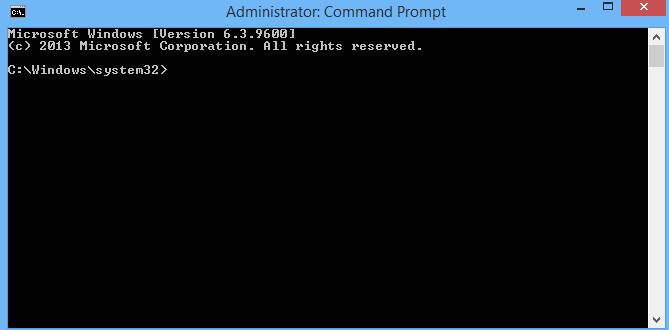
👉Command prompt will be opened.


👉Type net user and hit enter button.


👉Now, Here you will get the name of administrator account, just note it down.

👉Now enter net user user_name new password.


👉Thats it, now enter the new password in the login panel and you will be logged in.

🌐Basically, the above given are some of the interesting steps which can help to bypass windows 7 password . So, with this procedure, windows 10 password reset you can simply avoid the login screen of the Windows 10 and gain access to the various controls of the Windows 10. Now this method is applicable for all the Windows users and it would be quite interactive to gain access to the personal computer without having the tedious taks of remembering the password and simple set it up as a dynamic one. Bookmark this page to get more updates on windows 10 password reset.

Thank you.....

28 February 2016

Set Pattern Lock in Windows OS

Set Pattern Lock in Windows OS Must Try This.

In windows, you have password based lock security. But what if there is a chance to add Android-like pattern lock on windows OS. Sounds good right! In this article, I’ll show you How to set Android Like pattern lock on windows XP/Vista/7/8/8.1 using Eusing Maze Lock.

What is Eusing Maze Lock?

●Eusing Maze Lock is a free and easy to use tool which enables you to add an android like pattern lock to windows os. 
●With this, you can add an Automatic lock on windows at startup or after a specified time.

●You can use 3 types of grids (3X3,4X4 or 5X5) in pattern lock. You can set an alert message if the password entered was wrong for specified no.of times.

●You can also backup your pattern as BMP image. Maze Lock has a feature to add an image as background for the lock screen. Okay! Let us see How to use Eusing Maze lock.

Step to Set Pattern Lock on Windows OS.

To add Pattern Lock security on your windows OS, just follow these simple steps.

◆First download Eusing Maze lock and install it on your computer. Now you can see Maze lock icon in your system tray at right bottom corner.


◆Just right click on Maze lock icon and select Configure (or simply press Windows key +C ).


◆Now Maze Lock configure window appears. There you’ll see Default lock pattern. Just click on Reset Pattern to reset the current pattern and for adding a new one.


◆Now you have to set a new pattern by dragging with your mouse on the grid. By clicking on Backup Pattern , you can save your pattern as a BMP image. But make sure that you save your pattern at a safe place.


◆After setting up a new pattern, click on General Tab.
Here you have you set Maze lock settings like turning on Autolock at windows startup/after specified time, adding alert text.


◆If you want, you can add a Background image for your lock screen. For that click on Background tab and click on Change Image button, upload image and click on ok button.


◆You’ve added lock pattern security on your windows OS. Now press windows key + A to open your lock screen and use your newly created pattern to unlock your system.


We hope you’ve understood How to add pattern lock on windows OS. If you like this article, then feel free to share it with others.
Thanks......